

Create Entities
How to map your organizational structure in Darwin
Create Entities
Entities represent your organizational structure in Darwin. They form a hierarchy that allows you to allocate environmental data and track impacts across your organization.
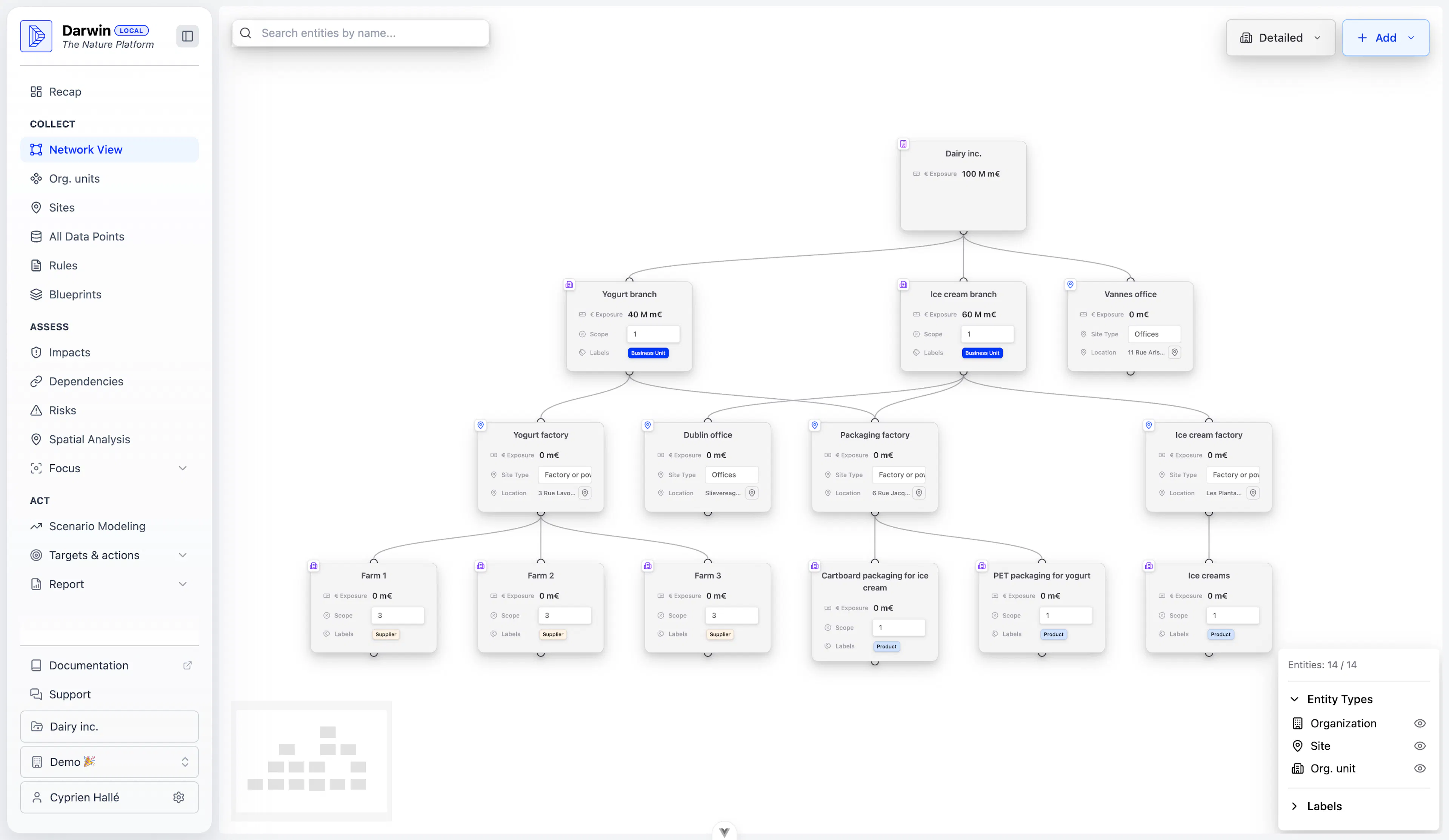
Entity Types
Darwin supports three types of entities:
| Type | Icon | Description | Example |
|---|---|---|---|
| Organization | Building | Root entity, represents your company | "ACME Corp" |
| Org. Unit | Folder | Business divisions or product lines | "Europe Division", "Product A" |
| Site | Pin | Physical locations with coordinates | "Paris Factory", "London Office" |
Create Your First Entity (Root)
Add Organizational Units
Org. Units help you structure your company hierarchy:
-
Click the + button on an existing entity in the Network View
-
Select Org. Unit
-
Enter:
-
Name: Division or product name
-
Scope: 1 (Direct operations) or 3 (Upstream/Downstream)
-
Revenue: Revenue allocation for this unit
-
Labels: Tags like "Business Unit", "Product", "Supplier"
-
Add Sites
Sites are physical locations with geographic coordinates:
-
Click the + button on a parent entity
-
Select Site
-
Enter:
-
Name: Site name
-
Site Type: Select from the list below
-
Location: Search for an address or click on the map
-
Revenue: Optional revenue allocation
-
Site Types
Darwin supports 18 site types for accurate impact modeling:
Commercial
-
Offices
-
Warehouse
-
Shop
Industrial
-
Factory or powerhouse
-
Construction
-
Mining
Agriculture
-
Low-input Agriculture
-
High-input Agriculture
Energy - Fossil
-
Oil & Gas (land-based)
-
Oil & Gas (marine)
Energy - Renewable
-
Wind Energy
-
Solar Energy
-
Hydropower
Other
-
Restoration Projects
-
Managed Forests
-
Unspecified
The site type affects how spatial impacts are calculated. Choose the most accurate type for your operations.
Manage Entities in Table View
For bulk operations, use the Org. Units table view:
-
Go to Collect > Org. Units
-
View all entities in a sortable table
-
Click any row to edit the entity
-
Use filters to find specific entities
Sites Table View
The Sites table shows:
-
Site name and type
-
Parent entity
-
Geographic location
-
Revenue allocation
Scope Assignments
Assign scopes to define the boundary of your assessment:
| Scope | Description | Examples |
|---|---|---|
| Scope 1 | Direct operations | Your factories, offices, fleet |
| Scope 3 | Upstream/Downstream | Suppliers, raw materials, logistics |
Use Labels like "Supplier" or "Business Unit" to categorize entities beyond scope assignments.
Import Entities
To bulk import entities:
-
Click Import in the Org. Units view
-
Download the template
-
Fill in your entity data
-
Upload the completed file
See Import Data for detailed instructions.
Next Steps
After creating your entity structure:
-
Add data points to each entity
-
Configure rules for data propagation
-
View your footprint in the assessment views